Dell System Updateについて
Firmware Updateの重要性
突然ですが、皆さん、身近な機器のFirmware Update、していますか?
してません、という方も多いかもしれませんし、そもそもなんですかそれ、という方も多いかもしれません。
しかし、Firmwareを日ごろから最新のものに更新しておくことで、突然のHardwareの故障率を下げたり、より良い性能を引き出したりすることができるようになるかもしれません。
また、Dell Technologiesなどの各種ベンダーからも、Firmware更新を推奨する情報が出ていたりします。
PowerEdge:第14世代向けBIOSおよびiDRAC9のアップグレードを推奨 - Dell 日本
デル・テクノロジーズでは、第15世代PowerEdgeサーバーでBIOSとiDRAC9をアップグレードすることを推奨しています - Dell 日本
ベンダーから推奨されるバージョンに更新しておくことで、サポートを受ける際に、よりスムーズにトラブルシューティングが行えるようになります。
PowerEdge:最小、推奨、および最新のコード バージョン - Dell 日本
今回は、Dell Technologiesから発売されているx86 Server製品、PowerEdgeのFirmware Updateの方法について、紹介していきます。
PowerEdgeでFirmware更新をしたい
そもそも、Firmware Updateをするだけなのになぜこの記事を書いているかというと、サーバーにOSをインストールした後、DriverやFirmwareを更新する必要があるのですが、どのFirmwareをバージョンアップすればよいのか、また、どのように実施すればよいのかがわかりづらかったりします。めんどくさいので、一気に更新したい。そういった場合に使えるツールについて、自分なりの解釈として残しておこうと思い、執筆に至りました。
Firmware更新ツールについては、複数の方法があり、どの場合にどれを選べばよいかは、フローチャートを参考にしてください。
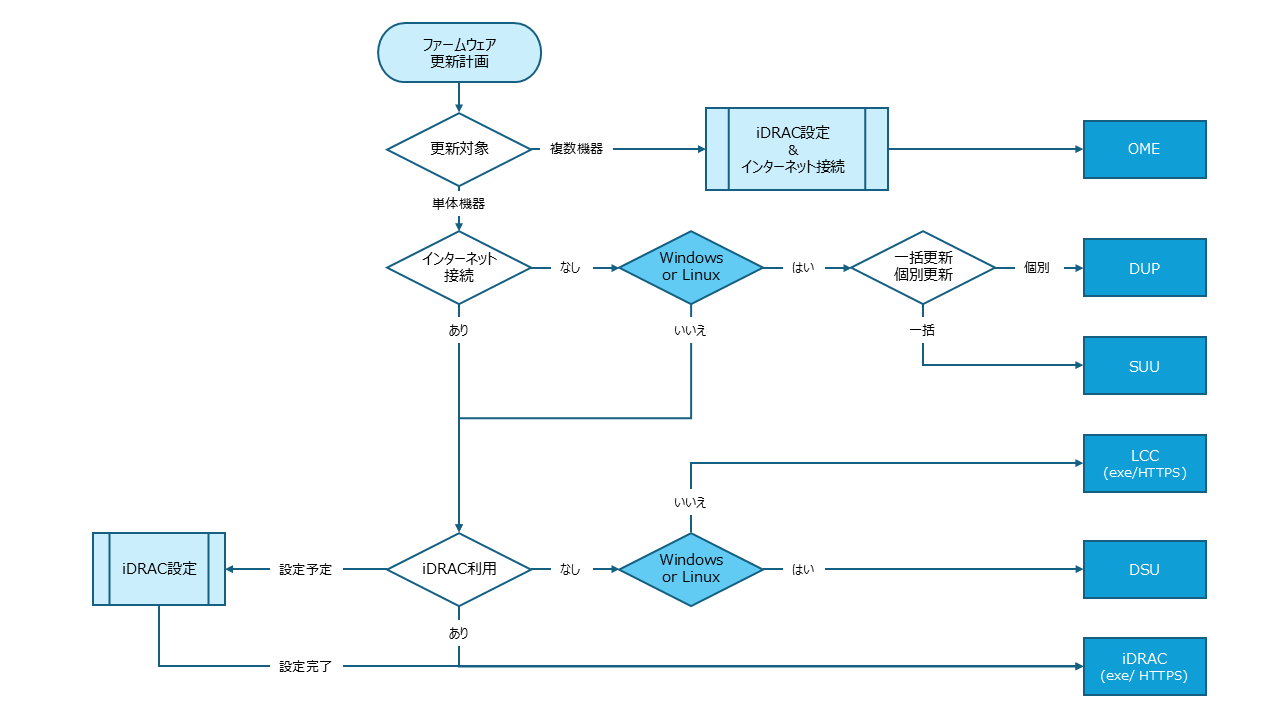
DSU、という選択肢
今回はその中でも、Dell System Update(DSU)に焦点をあてて、紹介していきます。
Dell Technologiesからは、PowerEdgeサーバー向けに、Dell System Update(DSU)というツールをリリースしています。これは、サーバーのFirmware、Driverを一括で更新してくれるツールになります。
Dell System Update(DSU) | Dell 日本
Dell System Update (DSU)は、Dell Update Packages (DUP)をDell PowerEdgeサーバーに適用するために、スクリプトを最適化したアップデート導入ツールです。
これを使用することで、現在、サーバーに搭載されている各コンポーネントのFirmware、Driverのバージョンを知ることができます。 また、Firmware、Driverの最新版の情報(メタデータ)を集めたカタログとの差分を表示し、更新余地があるものについては、カタログのバージョンに更新することが可能です。
このツールは、iDRACやOpenManage Server Administratorといったサーバー管理ツールがない状態でも、使用することができます。要するに、OS上にツールを入れて実行するだけで、FirmwareやDriverを全部一気に更新できます。
カタログの内容については下記のページを参照ください。このカタログは、毎週月曜日に更新がかかっていて、常に最新のFirmware、Driverが登録されるようになっているようです。DSUの素晴らしい点は、このカタログのバージョンに一括で更新してくれる、というところです。
PowerEdge:サーバーのカタログ リンク
使い方
使用方法は非常に簡単です。詳細については、下記の公式記事を参照いただければと思いますが、ツールをダウンロードして、PowerShell(管理者)上で、下記コマンドを実行するだけ、です。
1
PS C:\Windows\system32> DSU
DSU: Windows Serverオペレーティング システムでDELL EMC System Update(DSU)を使用してドライバーとファームウェアをインストールする方法 - Dell 日本
カタログから取得してきた情報一覧が表示されるので、そこから、どのFirmware、Driverを更新したいか、を選択し、C+Enterを押下することで、インストールできるようになります。 ※カタログのすべてのFirmware、Driverを更新したい場合は、a を押下します。
実際の実行結果
1
2
3
4
5
6
7
8
9
10
11
12
13
14
15
16
17
18
19
20
21
22
23
24
25
26
27
28
29
30
31
32
33
34
35
36
37
38
39
40
41
42
43
44
45
46
47
48
49
50
51
52
53
54
55
56
57
58
59
60
61
62
63
64
65
66
67
68
69
70
71
72
73
74
75
76
77
78
79
80
81
82
83
84
85
86
87
88
89
90
91
92
93
94
95
96
97
98
99
100
101
102
103
104
105
106
107
108
109
110
111
112
113
114
115
116
117
118
119
120
121
PS C:\Users\Administrator> dsu
DELL System Update 2.1.1.0
Copyright (C) 2014 -- 2024 DELL Proprietary.
Downloading the Index catalog
Extracting C:\ProgramData\Dell\DELL System Update\dell_dup\CatalogIndex.cab
Reading the Index catalog
Downloading the catalog
Extracting C:\ProgramData\Dell\DELL System Update\dell_dup\Catalog.cab
Reading the catalog ...
Verifying inventory collector installation
Getting System Inventory ...
Determining Applicable Updates ...

|------------DELL System Update-----------|
[ ] represents 'not selected'
[*] represents 'selected'
[-] represents 'Component already at repository version (can be selected only if /e option is used)'
Choose:  q - Quit without update, c to Commit, <number> - To Select/Deselect, a - Select All, n - Select None
[-]1 BIOS
Current Version : 2.19.0 Same as : 2.19.0, Criticality : Urgent, Type : BIOS

[-]2 Firmware for  - Disk 0 in Backplane 1 of PERC H730 Adapter Controller 0 in Slot 3
Current Version : DK05 Same as : DK05, Criticality : Recommended, Type : Firmware

[-]3 Firmware for  - Disk 1 in Backplane 1 of PERC H730 Adapter Controller 0 in Slot 3
Current Version : DK05 Same as : DK05, Criticality : Recommended, Type : Firmware

[ ]4 Firmware for  - Disk 2 in Backplane 1 of PERC H730 Adapter Controller 0 in Slot 3
Current Version : LS08 Upgrade to : LS0C, Criticality : Recommended, Type : Firmware

[ ]5 Firmware for  - Disk 3 in Backplane 1 of PERC H730 Adapter Controller 0 in Slot 3
Current Version : LS08 Upgrade to : LS0C, Criticality : Recommended, Type : Firmware

[ ]6 Firmware for  - Disk 4 in Backplane 1 of PERC H730 Adapter Controller 0 in Slot 3
Current Version : LS08 Upgrade to : LS0C, Criticality : Recommended, Type : Firmware

[ ]7 Firmware for  - Disk 5 in Backplane 1 of PERC H730 Adapter Controller 0 in Slot 3
Current Version : LS08 Upgrade to : LS0C, Criticality : Recommended, Type : Firmware

[ ]8 Firmware for  - Disk 6 in Backplane 1 of PERC H730 Adapter Controller 0 in Slot 3
Current Version : DE09 Upgrade to : DE11, Criticality : Recommended, Type : Firmware

[-]9 PERC H730 Adapter Controller 0 Firmware
Current Version : 25.5.9.0001 Same as : 25.5.9.0001, Criticality : Recommended, Type : Firmware

[-]10 Dell OS Driver Pack, 18.11.00, A00
Current Version : 18.11.00 Same as : 18.11.00, Criticality : Optional, Type : Application

[-]11 Integrated Dell Remote Access Controller
Current Version : 2.86.86.86 Same as : 2.86.86.86, Criticality : Recommended, Type : Firmware

[-]12 OS COLLECTOR, v6.0, A00
Current Version : 6.0 Same as : 6.0, Criticality : Recommended, Type : Application

[-]13 [0001] Broadcom NetXtreme Gigabit Ethernet
Current Version : 22.00.6 Same as : 22.00.6, Criticality : Optional, Type : Firmware

[-]14 [0002] Broadcom NetXtreme Gigabit Ethernet #2
Current Version : 22.00.6 Same as : 22.00.6, Criticality : Optional, Type : Firmware

Enter your choice : a #ここで、aを押下すると、すべてのFirmware、Driverが選択される。aを選択している。

|------------DELL System Update-----------|
[ ] represents 'not selected'
[*] represents 'selected'
[-] represents 'Component already at repository version (can be selected only if /e option is used)'
Choose:  q - Quit without update, c to Commit, <number> - To Select/Deselect, a - Select All, n - Select None
[-]1 BIOS
Current Version : 2.19.0 Same as : 2.19.0, Criticality : Urgent, Type : BIOS

[-]2 Firmware for  - Disk 0 in Backplane 1 of PERC H730 Adapter Controller 0 in Slot 3
Current Version : DK05 Same as : DK05, Criticality : Recommended, Type : Firmware

[-]3 Firmware for  - Disk 1 in Backplane 1 of PERC H730 Adapter Controller 0 in Slot 3
Current Version : DK05 Same as : DK05, Criticality : Recommended, Type : Firmware

[*]4 Firmware for  - Disk 2 in Backplane 1 of PERC H730 Adapter Controller 0 in Slot 3
Current Version : LS08 Upgrade to : LS0C, Criticality : Recommended, Type : Firmware

[*]5 Firmware for  - Disk 3 in Backplane 1 of PERC H730 Adapter Controller 0 in Slot 3
Current Version : LS08 Upgrade to : LS0C, Criticality : Recommended, Type : Firmware

[*]6 Firmware for  - Disk 4 in Backplane 1 of PERC H730 Adapter Controller 0 in Slot 3
Current Version : LS08 Upgrade to : LS0C, Criticality : Recommended, Type : Firmware

[*]7 Firmware for  - Disk 5 in Backplane 1 of PERC H730 Adapter Controller 0 in Slot 3
Current Version : LS08 Upgrade to : LS0C, Criticality : Recommended, Type : Firmware

[*]8 Firmware for  - Disk 6 in Backplane 1 of PERC H730 Adapter Controller 0 in Slot 3
Current Version : DE09 Upgrade to : DE11, Criticality : Recommended, Type : Firmware

[-]9 PERC H730 Adapter Controller 0 Firmware
Current Version : 25.5.9.0001 Same as : 25.5.9.0001, Criticality : Recommended, Type : Firmware

[-]10 Dell OS Driver Pack, 18.11.00, A00
Current Version : 18.11.00 Same as : 18.11.00, Criticality : Optional, Type : Application

[-]11 Integrated Dell Remote Access Controller
Current Version : 2.86.86.86 Same as : 2.86.86.86, Criticality : Recommended, Type : Firmware

[-]12 OS COLLECTOR, v6.0, A00
Current Version : 6.0 Same as : 6.0, Criticality : Recommended, Type : Application

[-]13 [0001] Broadcom NetXtreme Gigabit Ethernet
Current Version : 22.00.6 Same as : 22.00.6, Criticality : Optional, Type : Firmware

[-]14 [0002] Broadcom NetXtreme Gigabit Ethernet #2
Current Version : 22.00.6 Same as : 22.00.6, Criticality : Optional, Type : Firmware

Enter your choice : c #cを押下して、Enterで更新を実行する。
Trying to connect using https
Fetching SAS-Drive_Firmware_8FF65_WN64_LS0C_A00 ...
Trying to connect using https
Fetching SAS-Drive_Firmware_MCM30_WN64_DE11_A00 ...
Installing SAS-Drive_Firmware_8FF65_WN64_LS0C_A00
Installed successfully
Installing SAS-Drive_Firmware_MCM30_WN64_DE11_A00
Installed successfully
Done! Please run 'dsu --inventory' to check the inventory
Progress report is available at:C:\ProgramData\Dell\DELL System Update\dell_dup\DSU_STATUS.json
Exiting DSU!
まとめ
DSUを使用することで、Dellのリポジトリから簡単に最新のFirmware、Driverを取得してきて、更新することができます。
ぜひ、PowerEdgeをお使いの方は、DSUを使用してFirmware、Driverの更新を行ってみてください。
ちなみに、DSU以外にも使用できるツールはあります。 代表的なものは、SUUですね。DSUは、Dellのリポジトリから最新のFirmware、Driverを取得してきて更新するのに対し、SUUは、あらかじめダウンロードしたISOイメージから更新を行うツールになります。
PowerEdge:Dell SUU を使用したファームウェアとドライバのアップデート - Dell 日本
SUUはISOイメージから更新を行うため、イメージさえあればインターネット接続がない状態でも、更新を行うことができます。
以上になります。また、気分が乗ったら、SUUとか他のツールについても書いていこうと思います。
おまけ
実行環境は以下。今回のDSUの実行は、Windows Server 2025上で行いました。
DSU実行によって、Firmwareのバージョンが更新されました。
検証環境サーバースペック (Dell PowerEdge T430)
1. サーバー概要
- モデル: Dell Inc. PowerEdge T430
- BIOSバージョン: 2.19.0
- リモート管理 (iDRAC): iDRAC8 Enterprise, ファームウェアバージョン 2.86.86.86
2. CPU
- モデル: Intel(R) Xeon(R) CPU E5-2623 v4 @ 2.60GHz
- 搭載数: 1基
- コア/スレッド: 4コア / 8スレッド
3. メモリ
- 合計容量: 40 GB
- 構成: 8GB DDR4 DIMM x 5枚
4. ストレージ
- RAIDコントローラー:
- モデル: PERC H730 Adapter
- ファームウェア: 25.5.9.0001
- キャッシュ: 1024 MB
- 仮想ディスク構成:
- 仮想ディスク “ESXi” (RAID 1):
- 容量: 約599 GB
- 構成物理ディスク: ディスク 0, 1
- 仮想ディスク “WinServer202x” (RAID 0):
- 容量: 約598 GB
- 構成物理ディスク: ディスク 2, 3
- 仮想ディスク “Nutanix-Data” (RAID 5):
- 容量: 約598 GB
- 構成物理ディスク: ディスク 4, 5, 6
- 仮想ディスク “ESXi” (RAID 1):
- 物理ディスク詳細:
- ディスク 0 (Bay 0):
- メーカー/モデル: TOSHIBA AL13SXB60EN
- 容量/種類: 約600 GB / HDD (SAS)
- ファームウェア: DK05
- 所属RAID: RAID 1 (“ESXi”)
- ディスク 1 (Bay 1):
- メーカー/モデル: TOSHIBA AL13SXB60EN
- 容量/種類: 約600 GB / HDD (SAS)
- ファームウェア: DK05
- 所属RAID: RAID 1 (“ESXi”)
- ディスク 2 (Bay 2):
- メーカー/モデル: SEAGATE ST300MM0006
- 容量/種類: 約300 GB / HDD (SAS)
- ファームウェア: LS08
- 所属RAID: RAID 0 (“WinServer202x”)
- ディスク 3 (Bay 3):
- メーカー/モデル: SEAGATE ST300MM0006
- 容量/種類: 約300 GB / HDD (SAS)
- ファームウェア: LS08
- 所属RAID: RAID 0 (“WinServer202x”)
- ディスク 4 (Bay 4):
- メーカー/モデル: SEAGATE ST300MM0006
- 容量/種類: 約300 GB / HDD (SAS)
- ファームウェア: LS08
- 所属RAID: RAID 5 (“Nutanix-Data”)
- ディスク 5 (Bay 5):
- メーカー/モデル: SEAGATE ST300MM0006
- 容量/種類: 約300 GB / HDD (SAS)
- ファームウェア: LS08
- 所属RAID: RAID 5 (“Nutanix-Data”)
- ディスク 6 (Bay 6):
- メーカー/モデル: TOSHIBA AL13SEB300
- 容量/種類: 約300 GB / HDD (SAS)
- ファームウェア: DE09
- 所属RAID: RAID 5 (“Nutanix-Data”)
- ディスク 7 (Bay 7):
- メーカー/モデル: ATA (Crucial) CT1000BX500SSD1
- 容量/種類: 約1 TB / SSD (SATA)
- ファームウェア: M6CR061
- 所属RAID: Non-RAID
- ディスク 0 (Bay 0):
5. ネットワーク
- モデル: Broadcom NetXtreme BCM5720 Gigabit Ethernet
- ポート数: 2ポート
- リンク速度: 1000 Mbps
6. 電源ユニット (PSU)
- 容量: 495W
- 構成: 1台搭載